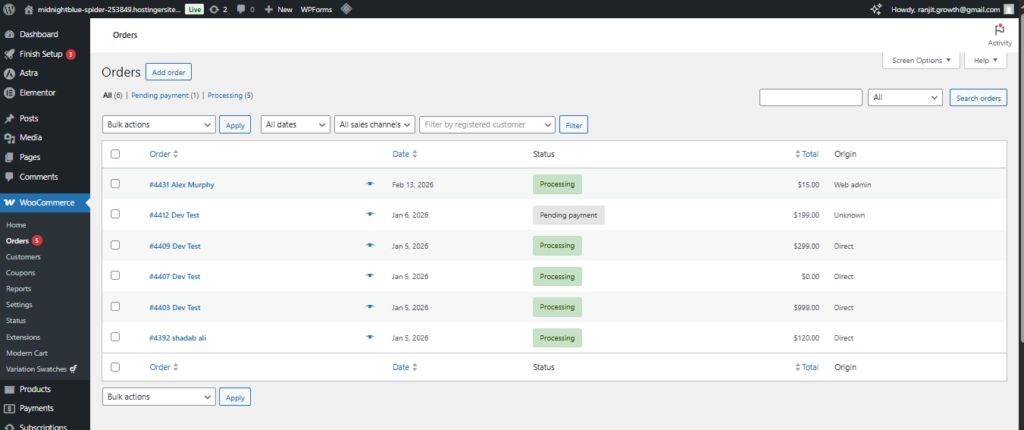
After opening an order from WooCommerce → Orders, the lower section of the page allows administrators to review payments, modify details, and take financial actions such as refunds.
This area is critical because subscription renewals behave like standard WooCommerce orders.
General Information
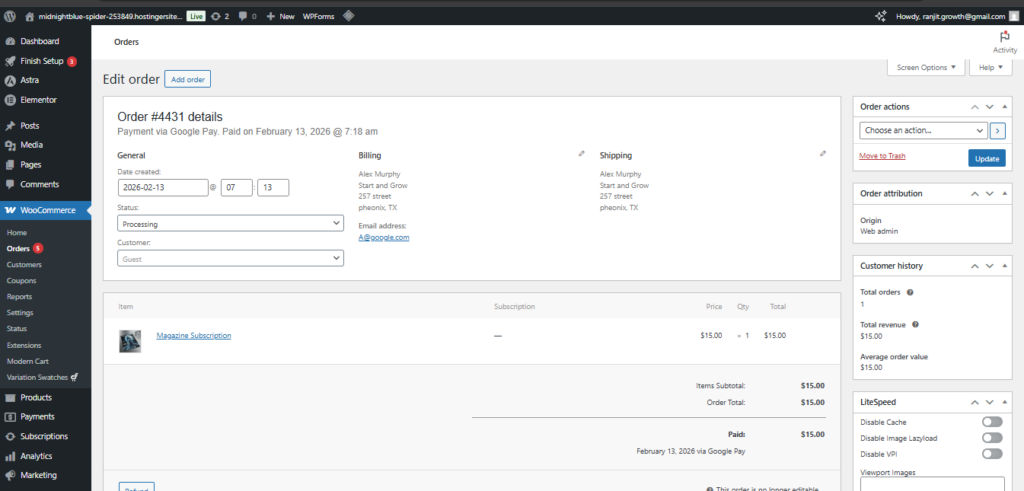
Date Created
Shows when the order was generated.
Admins can adjust it if required for reporting or corrections.
Status
Defines the current stage of the order.
Subscription Options Explained
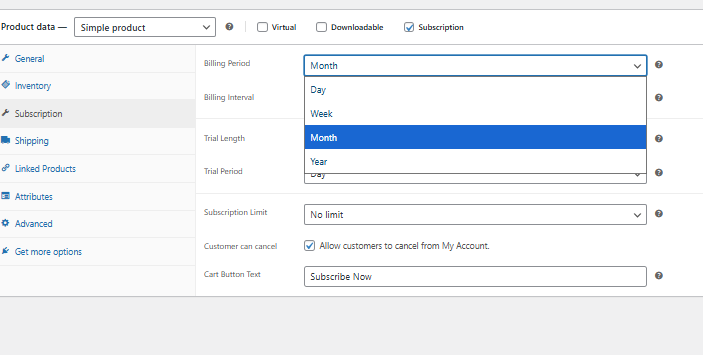
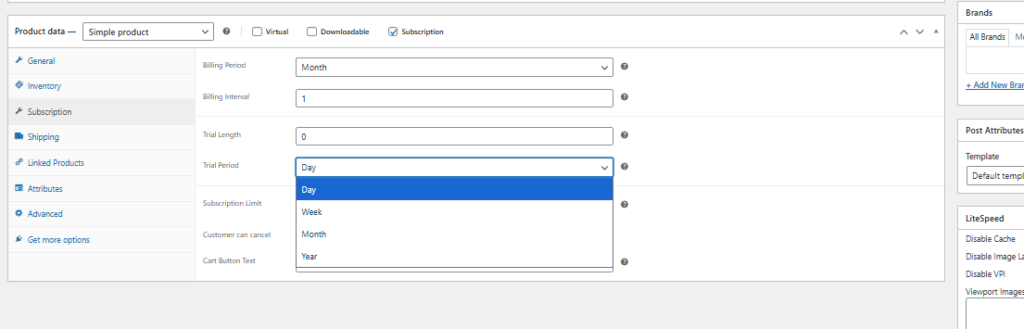
The Subscription tab inside Product Data allows you to configure how recurring billing behaves for a subscription product. Below is a detailed explanation of each setting.
Billing Period
Select how often the customer will be charged.
The billing period defines the unit of time for recurring payments. Available options typically include:
- Day(s)
- Week(s)
- Month(s)
- Year(s)
Example:
If you choose Month, the subscription will renew monthly.
Billing Interval
Define how many billing periods must pass before renewal.
This works together with the Billing Period.
Examples:
Billing Period: Month
Billing Interval: 1 → Charged every 1 month
Billing Period: Month
Billing Interval: 3 → Charged every 3 months
Billing Period: Year
Billing Interval: 2 → Charged every 2 years
This allows you to create flexible plans such as quarterly, biannual, or custom recurring cycles.
Trial Length #
Enter the numeric value for the trial duration.
This determines how long the trial will last before the first payment is charged.
Example:
- 7 → 7 units of the selected Trial Period
- 0 → No trial period
If set to 0, the subscription starts billing immediately.
Trial Period #
Select the time unit for the trial duration.
Available options include:
- Day(s)
- Week(s)
- Month(s)
- Year(s)
Example:
Trial Length: 7
Trial Period: Day(s)
Customer receives a 7-day free trial.
Subscription Limit
Control how long the subscription will run.
Available options:
No Limit
Customers can purchase this subscription product multiple times without restriction.
Use this when:
- The same customer is allowed to hold multiple active subscriptions
- You offer repeatable service plans
One Active Subscription
Customers can only have one active subscription for this product at a time.
Use this when:
- You want to prevent duplicate active plans
- The subscription represents a single membership access
One Subscription (Any Status)
Customers can only have one active subscription for this product at a time.
If they already have an active subscription, they will not be able to purchase it again until it expires or is cancelled.
Even if the subscription is:
- Active
- Cancelled
- Expired
- Pending
They will not be able to purchase it again.
Use this when:
- The subscription is a one-time enrollment
- You want strict single-purchase access
- It represents a lifetime or exclusive registration
Customer Can Cancel
Enable this option to allow customers to cancel their subscription from their My Account page.
✔ Checked → Customers can cancel on their own
✖ Unchecked → Only admin can cancel subscriptions
Customer View (Frontend Result) #
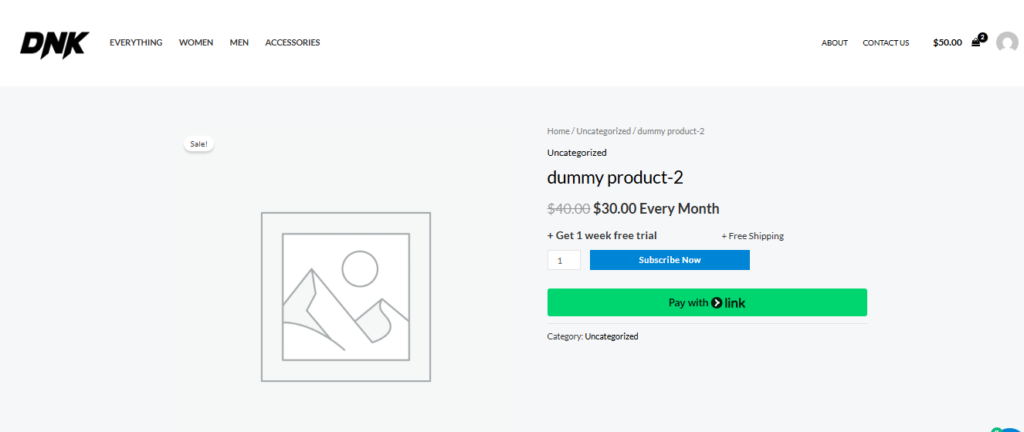
After saving the product, customers will see:
- Subscription price
- Billing frequency
- Trial details (if configured)
- Customized button text
Users can complete the purchase normally and manage their plan from their account dashboard.