
To manually create an order in your store:
Go to:
WooCommerce → Orders → Add Order
This screen allows administrators to create orders on behalf of customers — useful for manual subscriptions, phone orders, or admin-generated renewals.
Order Details Section
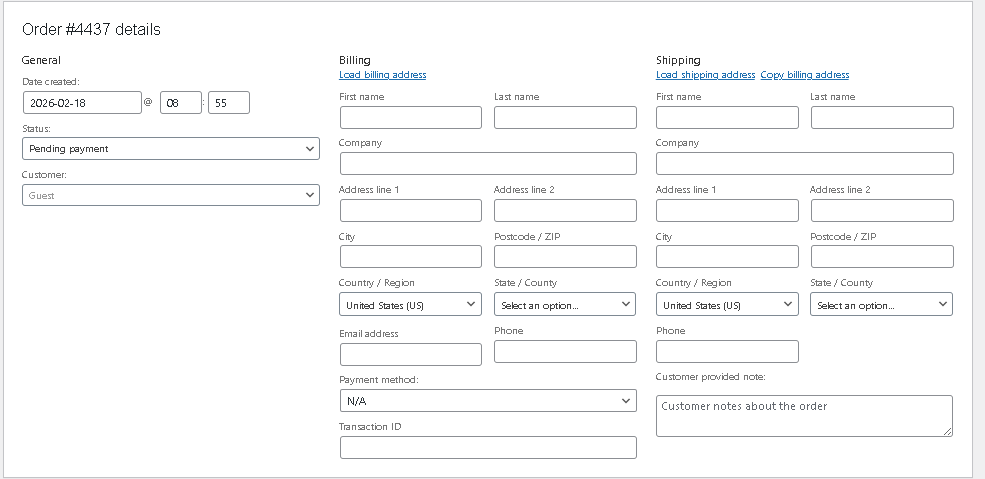
At the top, you’ll see ex. Order #XXXX details.
Date Created
Set the order date and time.
This is useful for backdated entries or manual renewals.
Status
Choose the initial order status.
Common statuses include:
- Pending payment
- Processing
- On hold
- Completed
- Cancelled
- Refunded
- Failed
- Draft
For subscription orders, the selected status may affect activation behavior.
Customer
Assign the order to:
- A registered user
- Or keep as Guest
If the order is linked to a subscription, it is recommended to assign it to a registered user.
Billing Section
Click the ✏️ icon to enter billing details:
You can either:
- Click Load billing address (if the customer is registered), or
- Enter the details manually
- Customer name:First Name-Last Name
- Company
- Address:Address line 1-Address line 2 – city – postcode/ZIP – country/region – state/county
- Phone
- Transaction ID(Enter the payment gateway transaction ID if:
(The payment was processed externally
You are recording a manual payment
This helps with reconciliation and accounting.)
Accurate billing details ensure proper invoices and email notifications
Create
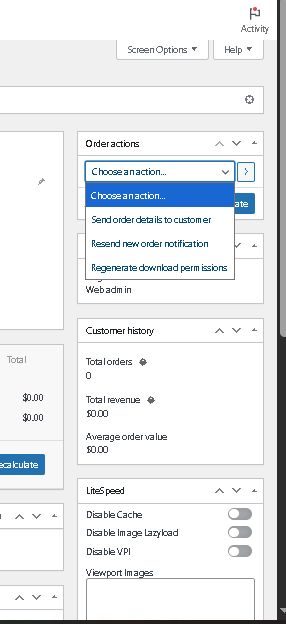
When adding a new order, click Create to save and generate the order.
Until you click Create, the order is not finalized.
Move to Trash
Deletes the draft order permanently (or moves it to trash depending on settings).
Order Attribution
This section shows how the order originated.
Order Notes
The Order Notes panel allows administrators to:
private notes-Add private internal notes
Note to Customer-Add notes visible to the customer
Editing Orders
Products, Totals, Permissions & Subscription Links
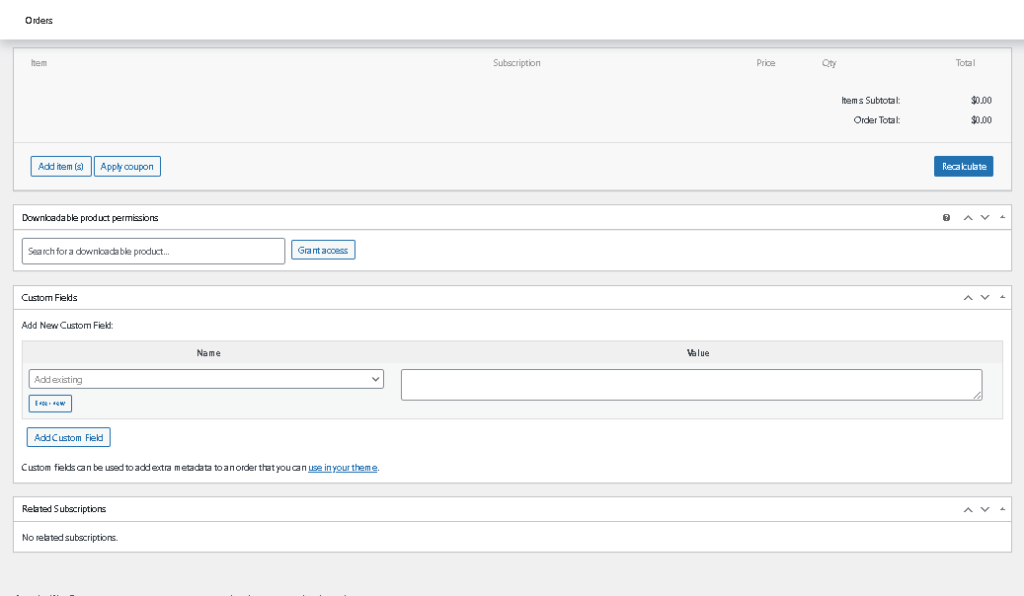
This section appears below the order details and is where administrators manage products, totals, downloadable access, and subscription relationships.WooCommerce orders.
Order Items Section
This is where products are added and managed.
Columns Overview
Item:Product name
Subscription – Linked subscription (if applicable)
Price – Product price
Qty – Quantity
Total – Line total
Add Item(s)
Click Add item(s) to:
- Search for a product
- Add simple products
- Add variable products
- Add subscription products
After selecting products, you can:
- Adjust quantity
- Modify price (if needed)
Apply Coupon
Click Apply coupon to attach a discount to the order.
This updates pricing before finalizing the order.
Recalculate
Always click Recalculate after:
- Adding products
- Changing quantities
- Applying coupons
- Adjusting prices
This ensures totals are accurate.
Order Totals
On the right side, you will see:
- Items Subtotal
- Order Total
If taxes or shipping apply, they will also appear here.
Always verify totals before creating or updating the order.
Custom Fields
This section allows administrators to add metadata to the order.
Add Custom Field
You can:
Select an existing field
Or create a new custom field
Enter a value
Click Add Custom Field
Custom fields are typically used for:
Developer integrations
Special tracking
Internal data storage
These fields do not affect subscription billing unless specifically programmed.


