After purchasing Flexi Subscription Pro, you’ll receive everything you need to install, activate, and manage your license through the Customer Portal.
Purchase Confirmation Email #
Once your purchase is complete, you’ll receive a confirmation email from Flexi Subscription.
The email contains all the important information you’ll need, including:
- Your Customer Portal login link
- Your account email address
- Temporary login password (first login only)
- Your license key
- Purchased plan details
- License type (number of sites)
- Customer and subscription information
- Support contact information
Note: For security reasons, sensitive information such as your email address, password, and license key may be blurred in the screenshots used throughout this documentation.
Access the Customer Portal #
The easiest way to manage your license is through the Customer Portal.
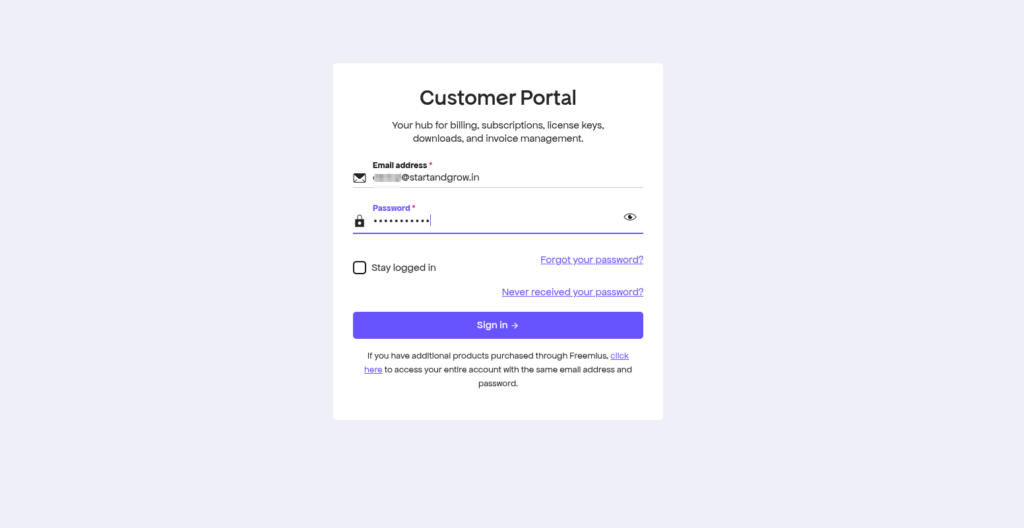
- Open the purchase confirmation email.
- Click the Log in here button.
- Sign in using the credentials provided in the email.
- After logging in, you’ll be redirected to your Customer Portal dashboard.
The Customer Portal allows you to manage your downloads, licenses, subscriptions, invoices, and account details from one place.
Customer Portal Overview #
The Customer Portal contains everything related to your Flexi Subscription purchase.
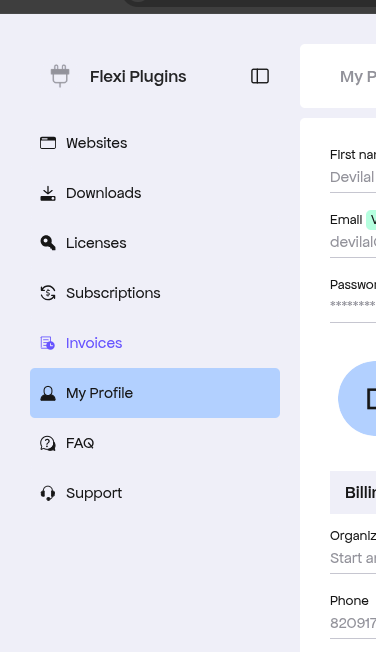
The left sidebar provides quick access to all account management sections:
- Websites
- Downloads
- Licenses
- Subscriptions
- Invoices
- My Profile
- FAQ
- Support
Below is a brief overview of each section.
Websites #
The Websites section displays every website where your license has been activated.
Here you can:
- View connected websites
- Monitor license activations
- Verify active installations
- Manage your website connections
This is useful for keeping track of available license activations, especially on multi-site plans.
Downloads #
The Downloads page allows you to download the latest version of Flexi Subscription at any time.
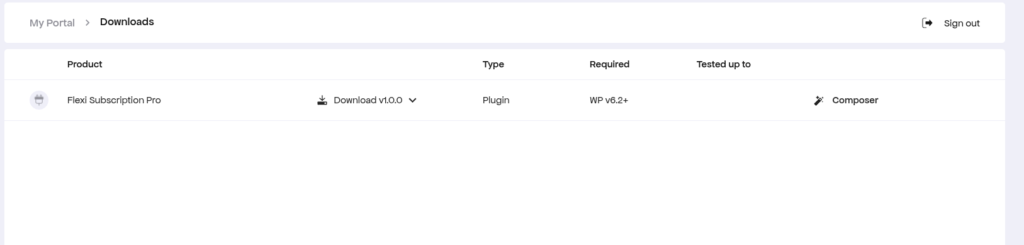
From this page you can:
- Download the latest plugin version
- Access previous versions (when available)
- Check WordPress compatibility
- View supported plugin versions
Always download the latest version to receive new features, improvements, and bug fixes.
Licenses #
The Licenses page contains your purchased license information.
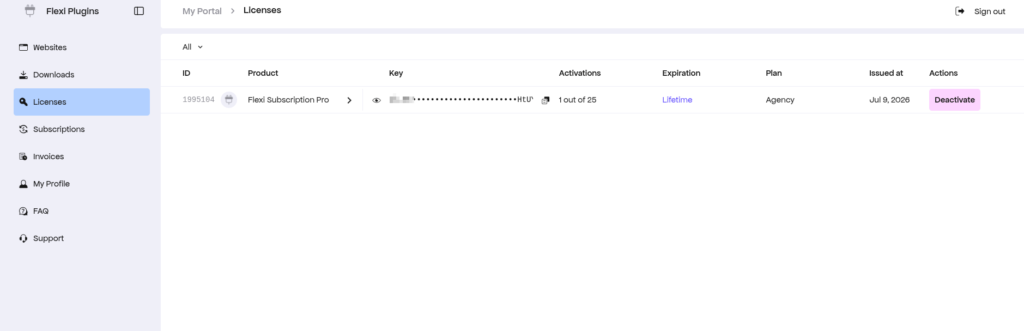
Here you’ll find:
- License key
- License status
- License type
- Number of activations used
- Purchase date
- License expiration
- Plan information
You can also manage your license directly from this page whenever needed.
Note: License keys are hidden in the documentation screenshots for security purposes.
Subscriptions #
If your purchase includes recurring billing, the Subscriptions section allows you to manage your subscription.
Here you can:
- View your active subscription
- Check billing cycle
- View payment method
- Monitor subscription status
- Review subscription details
Invoices #
The Invoices section stores your payment history.
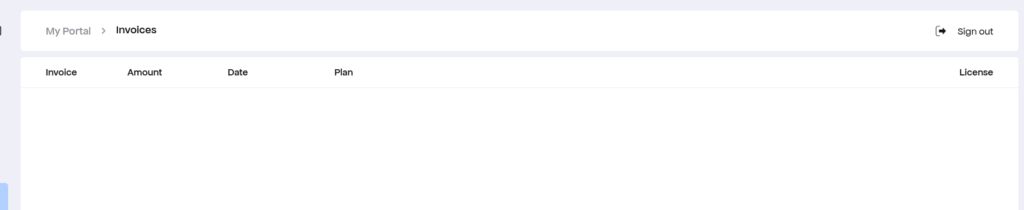
You can:
- View previous purchases
- Download invoices
- Review billing history
- Access payment records
This is especially useful for accounting and business record keeping.
My Profile #
The My Profile section lets you manage your personal account information.
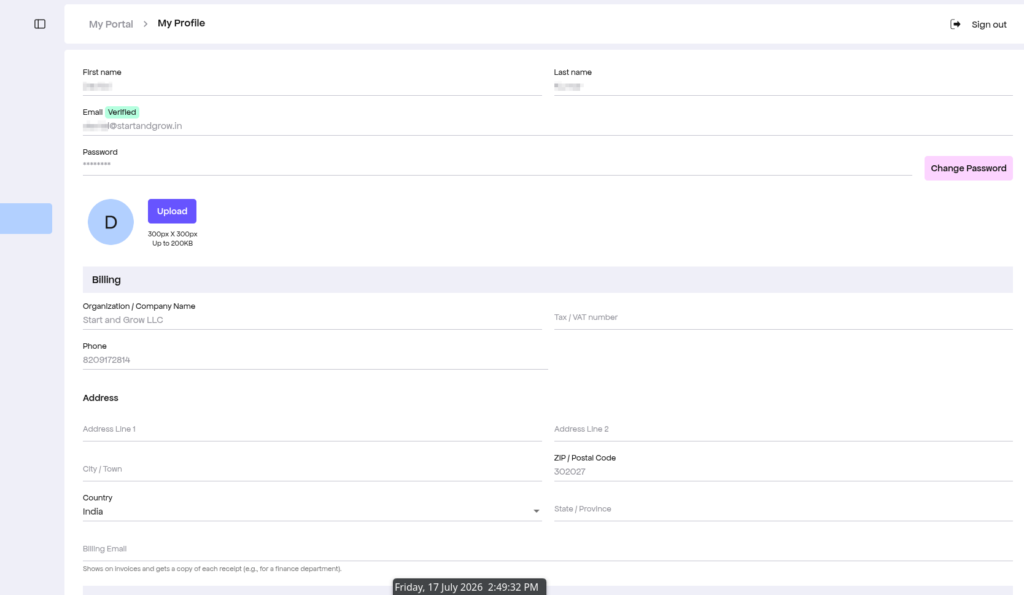
You can update:
- Name
- Password
- Company information
- Billing address
- Phone number
- Tax/VAT information
- Profile image
Keeping your profile up to date ensures your invoices and account information remain accurate.
FAQ #
Need a quick answer?
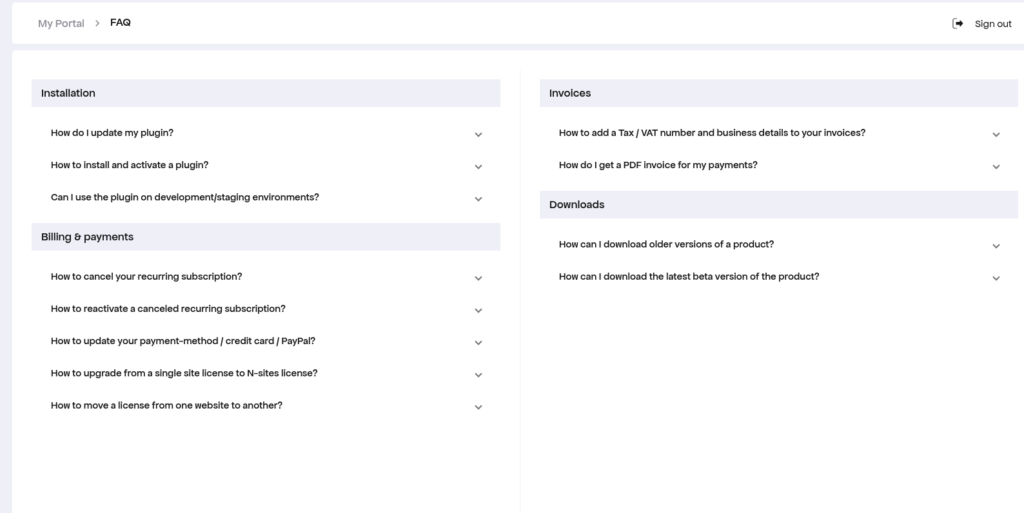
The FAQ section contains answers to many commonly asked questions, including:
- Plugin installation
- License activation
- Downloads
- Billing
- Subscription management
- Product updates
- Account access
Checking the FAQ is often the fastest way to resolve common questions.
Support #
Need additional assistance?
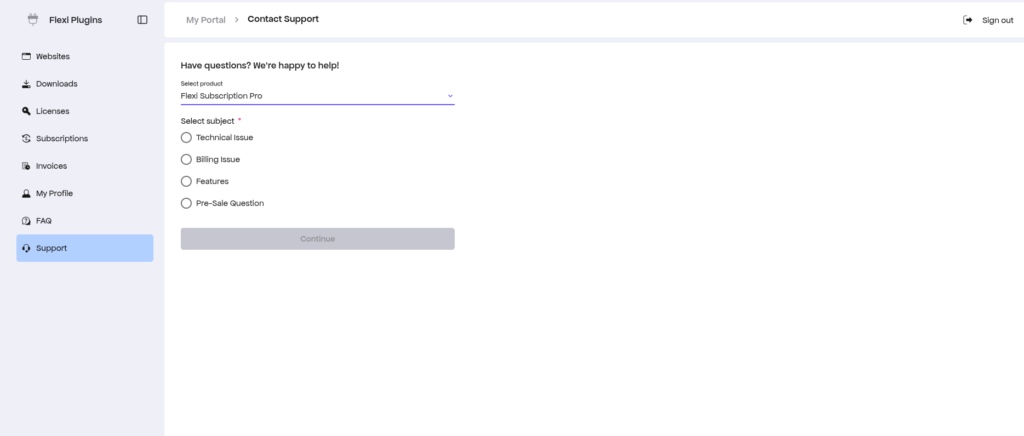
Open the Support section to contact our support team directly.
You can submit requests related to:
- Technical issues
- Installation problems
- License activation
- Billing questions
- Product features
- Pre-sales inquiries
When creating a support request, include as much detail as possible—such as screenshots, error messages, and the steps you’ve already tried—to help us resolve your issue more quickly.